
Modern businesses rely heavily on data. Sales teams manage customer relationships in CRM systems, while documents like proposals and contracts are stored in enterprise document management platforms. When these systems operate separately, employees waste time searching for files, handling duplicates, and working with outdated information.
This issue is common for organizations using Salesforce for CRM and Microsoft SharePoint for document storage. Without proper Salesforce SharePoint Integration, files become scattered, workflows slow down, and CRM storage quickly reaches its limits. Through Salesforce integration services, companies can connect these platforms and streamline how documents are stored and accessed.
For example, a sales representative may track an opportunity in Salesforce while the related proposal is stored in SharePoint. Without integration, the rep must manually download, upload, and email files, which often creates duplicate versions and unnecessary storage use.
Salesforce SharePoint Integration solves this problem by connecting Salesforce with SharePoint so documents remain in a centralized storage system while still being accessible directly within CRM workflows. This allows organizations to manage files efficiently, synchronize metadata, and automate document-related processes.
In this guide, we will explore:
- What Salesforce SharePoint Integration is and why businesses need it
- The architecture behind CRM document integrations
- How SharePoint document libraries connect with Salesforce records
- Authentication and security models for secure integrations
- Step-by-step implementation strategies
- File synchronization workflows and automation
- Enterprise best practices for document governance
By the end, you will understand not only how to integrate Salesforce with SharePoint, but also how Salesforce integration services help design a scalable document management architecture for modern business workflows.
Understanding Salesforce SharePoint Integration
This integration connects a CRM platform with a document management system so that files, documents, and attachments can be managed externally while remaining accessible inside CRM workflows.
Let’s break this concept down step by step.
What Salesforce SharePoint Integration Means
Salesforce SharePoint Integration refers to the process of connecting Salesforce CRM with Microsoft SharePoint to manage documents, files, and attachments outside the CRM while still linking them to Salesforce records.
Instead of storing large files directly inside Salesforce, organizations use SharePoint document libraries as the primary storage location. Salesforce records then reference those files through secure links or synchronized metadata.
In simple terms, the integration works like this:
- A document is uploaded or created in SharePoint.
- The file is associated with a specific Salesforce record, such as an account, opportunity, or case.
- Users access the document directly from Salesforce without leaving the CRM interface.
This model enables SharePoint and Salesforce document management while keeping the systems logically connected.
For example:
- A contract stored in SharePoint can appear inside a Salesforce opportunity.
- A project document stored in SharePoint can be linked to a Salesforce account.
- A support file in SharePoint can be associated with a Salesforce case record.
Through Salesforce SharePoint file integration, businesses maintain a single source of truth for documents while keeping CRM records organized and lightweight.
This approach also supports enterprise document management, which is essential for companies that handle thousands of files across multiple teams.
Why CRM Platforms Integrate with Document Management Systems?

CRM platforms like Salesforce are excellent at managing structured data such as customer records, sales pipelines, and activities. However, they are not designed to act as large-scale document storage systems.
That is where document management platforms like SharePoint become essential.
Organizations typically integrate Salesforce with SharePoint for several important reasons.
1. Reduce CRM Storage Costs
Salesforce storage can become expensive when organizations store large files, such as:
- Product brochures.
- Contracts.
- Proposal documents.
- Technical specifications.
With Salesforce external file storage integration, files are stored in SharePoint while Salesforce maintains references to those documents.
This dramatically reduces CRM storage consumption.
2. Improve Document Organization
SharePoint provides advanced document management features, including:
- Structured document libraries.
- Metadata tagging.
- Version control.
- Permission management.
These features allow businesses to build a scalable SharePoint document library in Salesforce workflows without overloading the CRM.
3. Enable Collaboration
SharePoint allows multiple users to work on documents simultaneously. Teams can collaborate on files while still linking those documents to CRM records.
For example:
- Marketing teams update proposal templates.
- Sales teams access the latest version directly from Salesforce.
This workflow eliminates outdated file versions.
4. Strengthen Document Governance
Many industries must comply with strict data policies. SharePoint offers enterprise-grade governance features, including:
- Version history.
- Audit logs.
- Permission inheritance.
- Retention policies.
Through SharePoint integration with salesforce crm, organizations can maintain strong compliance policies while still supporting CRM workflows.
Business Processes Supported by CRM Document Integration
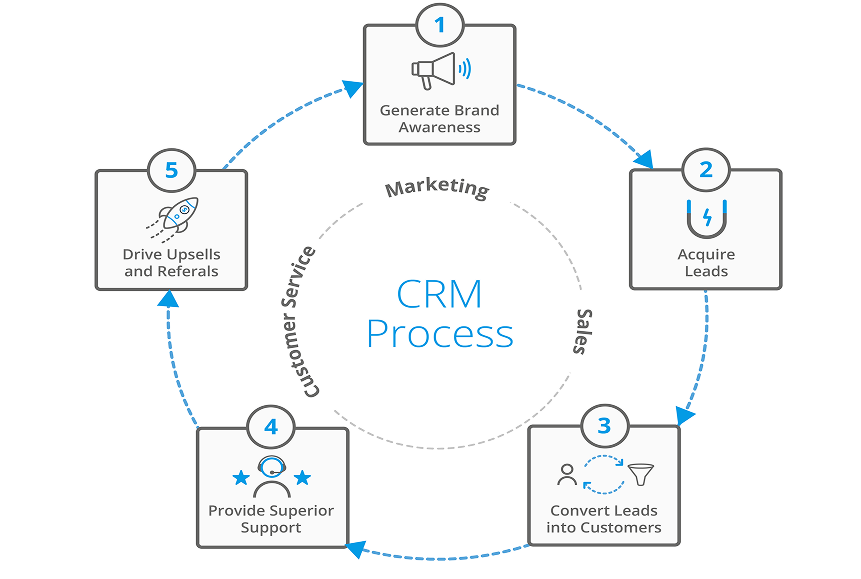
When organizations implement Salesforce SharePoint Integration, they unlock several document-driven business processes.
These workflows connect CRM data with enterprise document management systems.
Some of the most common use cases include:
Sales Document Management

Sales teams often handle a large number of documents:
- Proposals.
- Contracts.
- Presentations.
- Pricing sheets.
With Salesforce SharePoint document library integration, these documents remain organized in SharePoint while appearing directly inside Salesforce opportunities.
Customer Onboarding Workflows
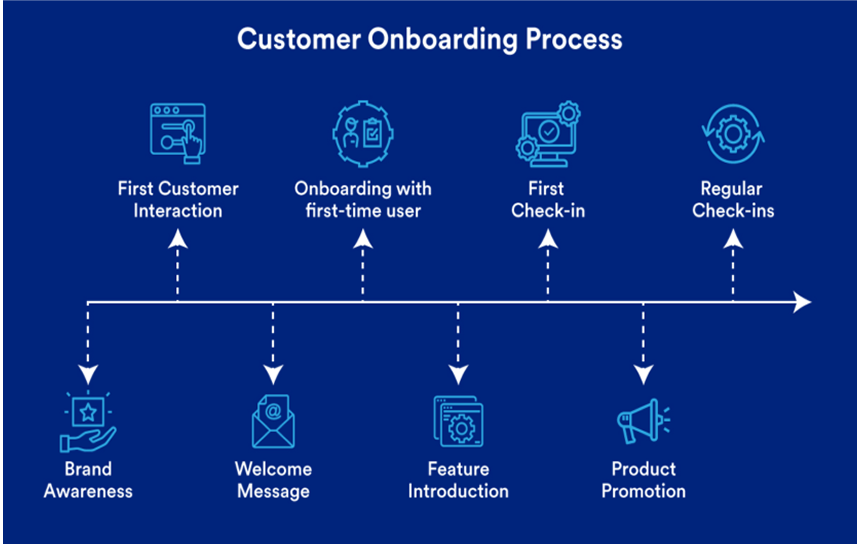
Customer onboarding often requires document exchange, including agreements and verification forms.
Using Salesforce SharePoint automation workflow, organizations can automatically:
- Create folders for new customers.
- Store onboarding documents.
- Attach files to CRM records.
This ensures every document is stored consistently.
Support and Case Management

Customer support teams frequently share documents such as troubleshooting guides, system logs, and reports.
Through Salesforce SharePoint connector implementations, these files can be linked to case records while remaining securely stored in SharePoint.
Compliance and Audit Workflows

Companies in regulated industries require strict document tracking.
Through crm document storage integrations, businesses can maintain:
- Document history.
- Approval workflows.
- Audit trails.
SharePoint manages governance while Salesforce maintains customer context.
Salesforce File Management Architecture
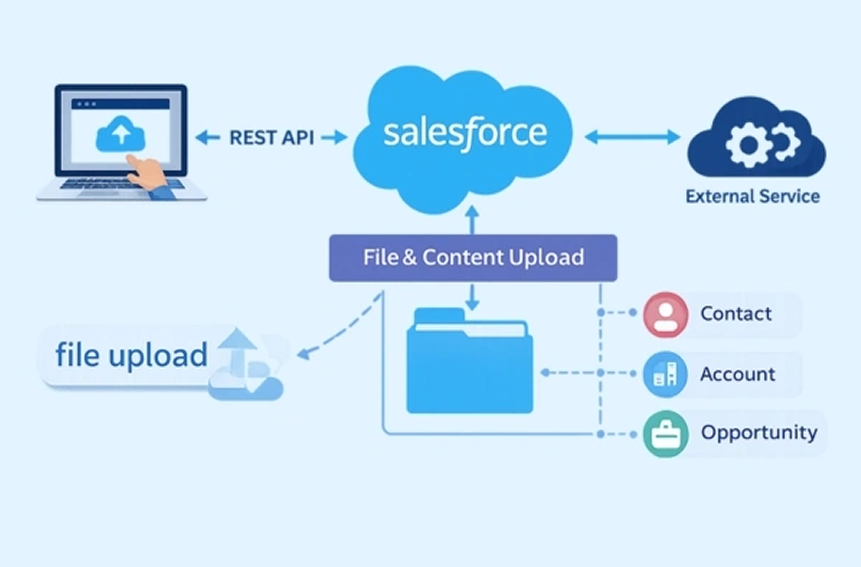
To understand how Salesforce SharePoint Integration works technically, it is important to explore how Salesforce manages files and attachments internally.
Many organizations initially store documents directly inside Salesforce. However, as the system grows, this approach becomes inefficient.
Let’s examine how Salesforce file architecture works and why external storage integrations are often necessary.
How Salesforce Stores Files and Attachments
Salesforce stores files using a system called Salesforce Files, which replaced the older attachment model.
Salesforce Files allows users to upload and share documents across CRM records.
The system consists of several components:
- ContentDocument – the actual document object.
- ContentVersion – version history of the file.
- ContentDocumentLink – association between files and records.
This architecture enables Salesforce to manage files efficiently within the CRM.
However, when organizations store large numbers of files inside Salesforce, they eventually face storage constraints.
Salesforce Files vs External Storage
The major difference between internal files and external storage lies in where the document physically exists.
Salesforce Files
Documents are stored inside the Salesforce infrastructure.
Advantages include:
- Simple access.
- Native integration with CRM objects.
- Easy sharing within Salesforce.
However, there are limitations:
- Expensive storage costs.
- Limited document governance.
- Restricted file organization structures.
External File Storage
In Salesforce’s external file storage integration, files remain on external platforms such as SharePoint.
Salesforce simply references the documents using secure connections.
Benefits include:
- Scalable document storage.
- Enterprise document governance.
- Integration with existing collaboration tools.
This model forms the foundation of Salesforce and Microsoft SharePoint integration.
Storage Limitations in CRM Systems
One major reason companies implement Salesforce SharePoint Integration is to overcome CRM storage limitations.
CRM platforms prioritize structured data rather than document-heavy workloads.
Typical CRM challenges include:
- Limited file storage capacity.
- High cost for additional storage.
- Lack of advanced document management features.
By implementing SharePoint Salesforce document management, organizations create a hybrid architecture:
- Salesforce handles CRM data.
- SharePoint manages documents.
This architecture improves both performance and scalability.
Overview of Microsoft SharePoint Document Management
To fully understand Salesforce SharePoint Integration, it is important to explore how Microsoft SharePoint manages documents internally. SharePoint is not just a file storage platform. It is a complete enterprise document management system designed to organize, govern, and secure large volumes of business documents.
Organizations use SharePoint to manage millions of files across departments, projects, and teams. When businesses integrate Salesforce with SharePoint, they gain access to these advanced document management capabilities while still maintaining CRM workflows.
SharePoint provides structured document libraries, metadata classification, version control, and enterprise-grade security. These features make it an ideal platform for crm document storage when organizations need to scale beyond traditional CRM file storage limits.
Let’s explore the key components of SharePoint document management.
SharePoint Document Libraries Explained
At the heart of SharePoint document management are document libraries. A document library is a centralized repository for storing, organizing, and managing files.
Unlike traditional folders on a computer, SharePoint document libraries offer advanced capabilities such as metadata tagging, version history, and automated workflows.
In a typical SharePoint Salesforce document management architecture, document libraries are mapped to business entities inside Salesforce.
For example:
| Salesforce Object | SharePoint Document Library |
| Accounts | Customer Documents Library |
| Opportunities | Sales Documents Library |
| Cases | Support Files Library |
This structure allows Salesforce records to link directly to relevant document libraries.
For instance, when a new opportunity is created in Salesforce, the integration can automatically create a folder inside a SharePoint document library to store related files.
This is one of the most common implementations in Salesforce SharePoint document library integration projects.
SharePoint Folder Structures and Metadata
Although SharePoint supports folder structures, modern document management relies heavily on metadata mapping.
Metadata describes the properties of a document. Instead of relying only on folders, documents are categorized using metadata fields such as:
- Customer Name.
- Opportunity ID.
- Document Type.
- Project Stage.
- Department.
When businesses implement Salesforce SharePoint metadata mapping, metadata from Salesforce records can be automatically applied to documents stored in SharePoint.
For example:
When a sales representative uploads a contract linked to a Salesforce opportunity, the system can automatically assign metadata values such as:
- Opportunity ID.
- Account Name.
- Sales Stage.
This improves search functionality and document organization across systems.
Metadata-driven organization is a critical part of modern enterprise document management.
Version Control and Document Governance
Another major advantage of SharePoint is its built-in version control system.
Whenever a document is updated, SharePoint automatically stores previous versions. Users can review the version history and restore earlier versions when needed.
Version control is particularly important in document-heavy workflows such as:
- Legal contracts
- Product specifications
- Sales proposals
- Technical documentation
With Salesforce SharePoint file integration, Salesforce users always access the most recent version of a document stored in SharePoint.
SharePoint also supports file governance, which includes:
- Retention policies.
- Document lifecycle management.
- Access control rules.
- Audit logging.
These governance features are essential for organizations operating in regulated industries such as healthcare, finance, or government.
Salesforce SharePoint Integration Architecture
The architecture behind Salesforce SharePoint Integration determines how data flows between the two platforms.
Different organizations adopt different integration models depending on their business requirements, security policies, and system complexity.
In general, the architecture includes three core components:
- Salesforce CRM
- SharePoint document management platform
- Integration layer connecting the two systems
Let’s explore the most common architectural approaches.
Native Integration Architecture

The simplest form of Salesforce Microsoft SharePoint integration uses native connectors or prebuilt solutions available on integration marketplaces.
These connectors act as bridges between Salesforce and SharePoint document libraries.
In a native architecture:
- Salesforce records are linked to SharePoint folders.
- Documents are stored in SharePoint.
- Salesforce displays document links within record pages.
This model allows users to access SharePoint files without leaving Salesforce.
Benefits of native connectors include:
- Faster implementation.
- Reduced development effort.
- Built-in authentication support.
However, native solutions sometimes provide limited customization for complex workflows.
API-Based Integration Architecture

Many enterprises implement API-driven integration to gain more control over their document workflows.
In this architecture, developers connect Salesforce and SharePoint using APIs.
Salesforce provides:
- REST APIs.
- SOAP APIs.
- Apex callouts.
SharePoint provides:
- Microsoft Graph API.
- SharePoint REST API
Through these APIs, the integration can perform operations such as:
- Uploading documents.
- Retrieving file metadata.
- Creating document libraries.
- Managing folder structures.
API connectivity allows organizations to design a customized Salesforce SharePoint integration architecture tailored to their workflows.
Middleware Integration Model
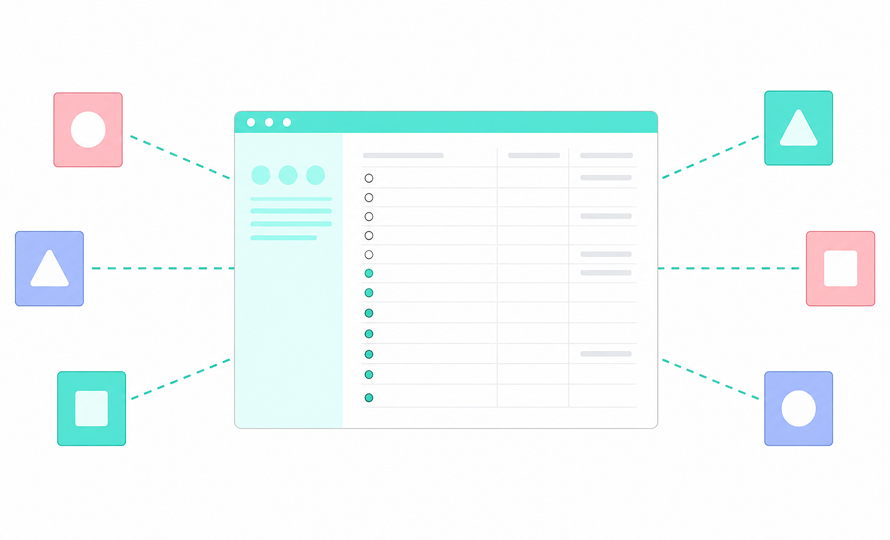
Large organizations often use integration middleware platforms to manage complex system connections.
Middleware tools act as a central hub between multiple enterprise systems.
Examples of integration platforms include:
- MuleSoft.
- Dell Boomi.
- Azure Logic Apps.
In this architecture, middleware handles:
- API communication.
- Data transformation.
- Authentication management.
- Error handling.
The workflow typically looks like this:
Salesforce → Middleware → SharePoint.
This architecture improves scalability and simplifies integration and maintenance.
It is commonly used in enterprise crm document integration environments where multiple systems share documents.
Event-Driven Integration Patterns
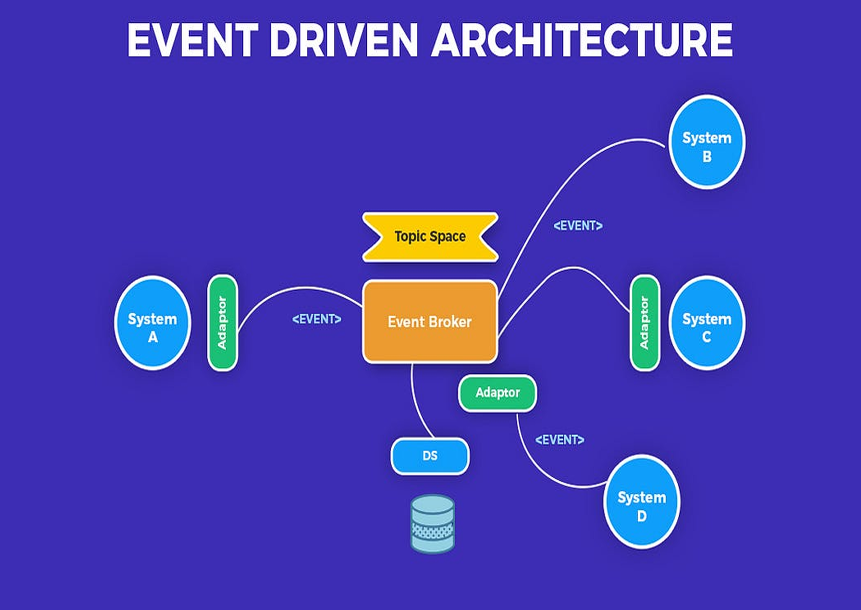
Modern enterprise integrations increasingly rely on event-driven architectures.
Instead of manually syncing files, systems respond automatically to events.
Examples of events include:
- A new Salesforce record is created.
- A document is uploaded to SharePoint.
- A file is updated or approved.
When an event occurs, automation workflows trigger integration processes.
For example:
- A new opportunity in Salesforce triggers automatic folder creation in SharePoint.
- Uploading a document triggers metadata synchronization.
These Salesforce SharePoint automation workflows improve efficiency by reducing manual work.
Authentication and Security Model

Security plays a critical role in Salesforce SharePoint Integration. Since documents may contain sensitive customer information, the integration must protect data during transmission and storage.
Authentication ensures that both systems trust each other and that only authorized users access documents.
Most modern integrations rely on secure authentication protocols such as OAuth.
OAuth Authentication Flow
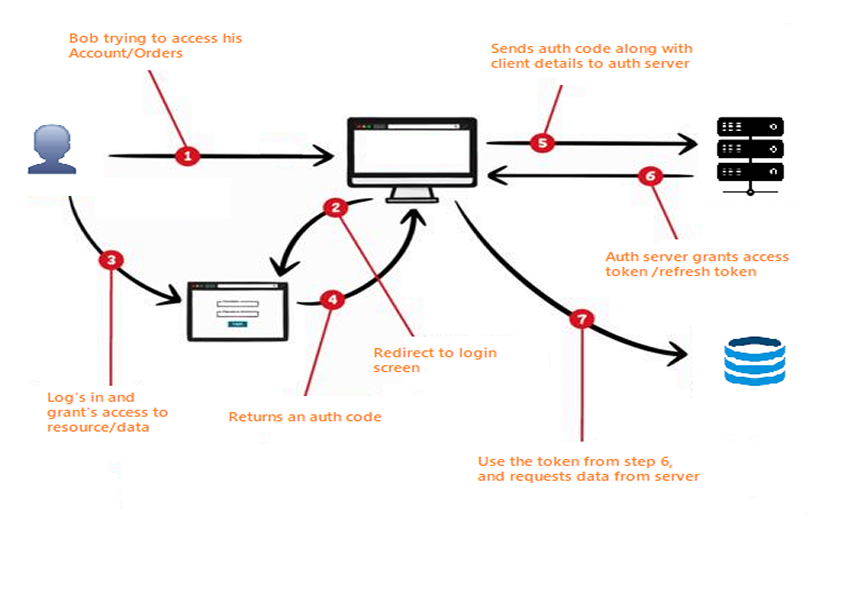
OAuth authentication allows Salesforce to access SharePoint resources without exposing user passwords.
The process works through token-based authentication.
A typical OAuth flow involves:
- Salesforce requests authorization from SharePoint.
- SharePoint verifies the identity of the requesting system.
- SharePoint issues an access token.
- Salesforce uses the token to interact with SharePoint APIs.
This method ensures secure api connectivity between the two platforms.
OAuth also supports token expiration and renewal, improving overall system security.
Identity and Access Management

Identity management ensures that users access documents based on their permissions.
When companies integrate Salesforce with SharePoint, they often synchronize user identities across systems.
This synchronization may use enterprise identity providers such as:
- Azure Active Directory.
- Single Sign-On (SSO) systems.
- Identity federation platforms.
Through identity management, user roles and permissions remain consistent across Salesforce and SharePoint.
Permission Synchronization Between Systems

Permissions must remain synchronized to prevent unauthorized file access.
For example:
- A sales representative should only see documents related to their accounts.
- A support engineer should access only relevant case files.
Through permission inheritance, SharePoint folders can automatically adopt security rules based on Salesforce records.
For instance:
If a Salesforce opportunity has restricted access, the associated SharePoint folder can inherit the same restrictions.
This alignment ensures secure SharePoint integration with salesforce crm.
Security Risks in File Integrations

Despite the benefits, file integrations can introduce potential security risks.
Common risks include:
- Improper permission mapping.
- Unsecured API endpoints.
- Incorrect metadata synchronization.
- Unauthorized file sharing.
Organizations must carefully design their salesforce external storage integration guide to prevent these issues.
Best practices include:
- Using encrypted API communication.
- Implementing strict access policies.
- Monitoring integration activity logs.
- Conducting regular security audits.
When security is properly managed, Salesforce SharePoint Integration becomes a safe and reliable enterprise solution.
Designing a Document Management Structure
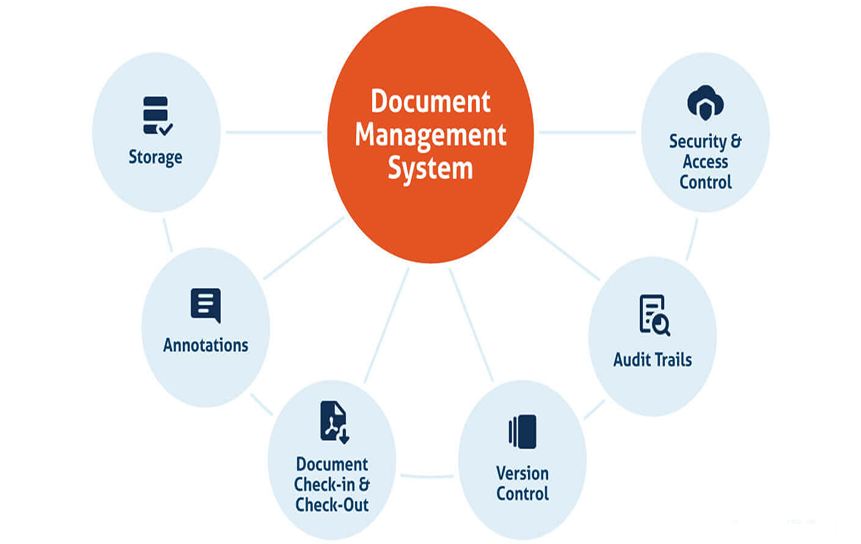
A successful Salesforce SharePoint Integration project does not start with technical configuration. Instead, it begins with designing a clear document management structure.
Many integration failures happen because organizations connect systems without planning how documents should be organized. When this happens, files quickly become disorganized, difficult to search, and hard to govern.
Before implementing SharePoint integration with salesforce crm, businesses must design a document architecture that defines:
- How files will be categorized.
- How folders will be structured.
- How metadata will be mapped.
- How naming conventions will be applied.
This planning phase ensures the integration supports long-term enterprise document management rather than creating chaos.
A document taxonomy is the classification system used to organize documents.
In large organizations, thousands of documents are created every day. Without a taxonomy framework, these files become difficult to locate.
A well-designed taxonomy ensures that every document follows a predictable structure.
For example, a typical taxonomy used in SharePoint Salesforce document management might include categories such as:
Document Type
- Proposal.
- Contract.
- Invoice.
- Technical Specification.
Business Unit
- Sales.
- Marketing.
- Customer Support.
- Finance.
Customer or Account
- Customer Name.
- Account ID.
When businesses implement Salesforce SharePoint metadata mapping, these taxonomy fields can be automatically populated using Salesforce record data.
For example:
- Account Name → metadata field in SharePoint.
- Opportunity ID → document classification field.
- Case Number → support document reference.
This approach improves file synchronization and ensures documents remain consistently categorized.
Folder Hierarchy Design Strategy

Although metadata plays a major role in document management, folder structures are still useful for organizing documents visually.
When implementing Salesforce SharePoint document library integration, organizations often create folder hierarchies based on CRM objects.
A typical hierarchy may look like this:
Customer Documents Library
├── Accounts
│ ├── Account A
│ │ ├── Contracts
│ │ ├── Proposals
│ │ └── Communications
│ └── Account B
├── Opportunities
│ ├── Opportunity 001
│ └── Opportunity 002
└── Cases
├── Case 101
└── Case 102
In this structure:
- Each Salesforce record generates a corresponding folder.
- Documents related to that record are stored inside the folder.
When companies integrate Salesforce with SharePoint, automated folder creation often becomes part of the Salesforce SharePoint automation workflow.
For example:
- Creating a new account automatically generates a SharePoint folder.
- Creating a new opportunity generates a project document folder.
This approach simplifies the SharePoint document library in Salesforce access.
Metadata Mapping Between Systems
Metadata mapping is one of the most critical components of Salesforce SharePoint integration architecture.
Metadata allows Salesforce data to be synchronized with SharePoint documents.
Typical metadata fields mapped during integration include:
| Salesforce Field | SharePoint Metadata Field |
| Account Name | Customer |
| Opportunity ID | Deal Identifier |
| Case Number | Support Case |
| Sales Stage | Opportunity Stage |
Through Salesforce SharePoint metadata mapping, documents automatically inherit information from CRM records.
For example:
When a contract is uploaded through Salesforce, the integration can automatically assign metadata such as:
- Account name.
- Opportunity stage.
- Document type.
This process improves searchability and enables advanced workflow automation in SharePoint.
File Naming Conventions
Even with metadata systems, naming conventions remain important.
Consistent naming standards improve document readability and reduce confusion.
Organizations implementing SharePoint and Salesforce document management often follow structured naming patterns.
Example naming convention:
[AccountName]_[OpportunityID]_[DocumentType]_[Date].
Example document name:
AcmeCorp_OPP1024_Contract_2026.pdf.
This naming structure provides immediate context about the file.
When organizations follow consistent naming rules, crm document storage becomes easier to manage and audit.
Step-by-Step Salesforce SharePoint Integration Process
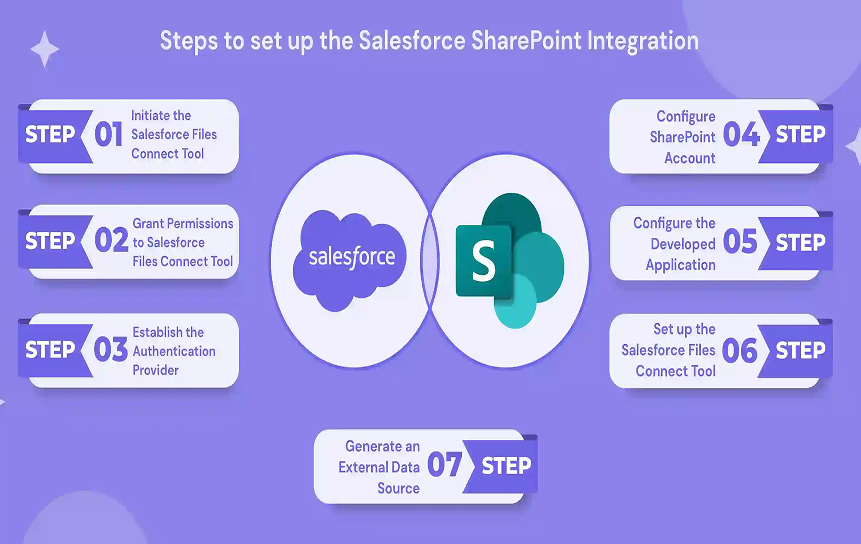
Now that the architecture and document structure are defined, it is time to implement the integration.
Although different organizations use different tools, the general Salesforce external storage integration guide follows several standard steps.
These steps ensure both systems communicate correctly and that documents remain synchronized.
Step 1: Define Integration Objectives

Before starting technical implementation, organizations must clearly define their goals.
Common objectives include:
- Reducing Salesforce storage consumption.
- Enabling centralized document management.
- Improving collaboration on files.
- Automating document workflows.
Defining objectives helps determine the best Salesforce SharePoint connector or integration architecture.
Questions organizations should ask include:
- Which documents will be stored in SharePoint?
- Which Salesforce objects require document libraries?
- What workflows need automation?
Clear answers guide the entire integration process.
Step 2: Prepare Salesforce Configuration
Next, administrators configure Salesforce to support the integration.
This may include:
- Creating custom objects for document references.
- Configuring external object storage connections.
- Enabling Salesforce Files settings.
- Setting API permissions.
These configurations allow Salesforce to communicate with SharePoint using secure APIs.
In many Salesforce Microsoft SharePoint integration implementations, administrators also create custom components that display SharePoint documents within Salesforce record pages.
Step 3: Configure SharePoint Document Libraries
Once Salesforce is ready, administrators configure SharePoint.
This step involves creating document libraries and metadata structures.
Typical tasks include:
- Creating document libraries for CRM objects.
- Defining metadata fields.
- Configuring version control settings.
- Establishing folder templates.
These configurations ensure that SharePoint supports the SharePoint document library in Salesforce workflows.
Step 4: Establish Authentication
Authentication is essential for secure communication between systems.
Most modern integrations rely on OAuth authentication.
During this step:
- SharePoint registers Salesforce as a trusted application.
- Authentication tokens are generated.
- Secure API communication is established.
Once authentication is configured, Salesforce can safely interact with SharePoint APIs.
Step 5: Map Metadata Fields
The next step involves configuring Salesforce SharePoint metadata mapping.
Administrators map Salesforce fields to SharePoint metadata properties.
For example:
- Salesforce Account → SharePoint Customer metadata.
- Salesforce Opportunity Stage → SharePoint Deal Status.
- Salesforce Case ID → SharePoint Support Case field.
This mapping ensures data remains synchronized across systems.
Step 6: Configure File Synchronization
After metadata mapping, administrators configure file synchronization rules.
Synchronization defines how files move between systems.
Common configurations include:
- Automatic upload to SharePoint when files are attached to Salesforce.
- Linking SharePoint documents to Salesforce records.
- Synchronizing metadata updates.
These configurations enable how Salesforce syncs files with SharePoint workflows.
Step 7: Validate Data Flow
Finally, the integration must be tested.
Validation ensures that:
- Files upload correctly.
- Metadata synchronizes accurately.
- User permissions remain secure.
Organizations typically perform several test scenarios before deployment.
Once validation is complete, the Salesforce SharePoint Integration environment is ready for production use.
File Synchronization Workflows
File synchronization is one of the most important aspects of Salesforce SharePoint Integration.
Synchronization determines how documents move between Salesforce and SharePoint while maintaining consistency across both platforms.
A well-designed Salesforce SharePoint document management workflow ensures that documents remain up-to-date, accessible, and properly organized.
There are several synchronization models organizations can implement.
One-Way File Synchronization
In one-way synchronization, files move in only one direction.
The most common configuration is:
Salesforce → SharePoint
When a file is uploaded inside Salesforce, the integration automatically stores it in SharePoint.
Salesforce then maintains a reference link to the document.
Benefits of one-way synchronization include:
- Reduced system complexity.
- Minimal conflict risk.
- Easier governance policies.
This model is commonly used when SharePoint acts as the primary external object storage for documents.
Two-Way File Synchronization
In two-way synchronization, files can be updated from both systems.
Changes in SharePoint automatically update Salesforce references, and vice versa.
This model supports advanced enterprise document management workflows but requires careful conflict resolution.
For example:
- If two users modify the same document, version control determines the final file.
Two-way synchronization is common in collaborative environments where teams work directly inside SharePoint.
File Synchronization Workflows
In enterprise environments, document synchronization must be predictable and reliable. Businesses cannot risk losing files, duplicating documents, or linking the wrong files to customer records.
A well-designed Salesforce SharePoint Integration ensures that documents move between systems in a controlled and automated way. Beyond simple one-way or two-way synchronization, modern integrations rely on intelligent triggers and scheduled jobs.
These mechanisms allow organizations to maintain efficient crm document storage while reducing manual work.
Event-Triggered File Updates
Event-triggered workflows are one of the most powerful features in Salesforce SharePoint Integration architectures.
Instead of manually synchronizing files, the integration reacts automatically when a specific event occurs.
Examples of integration events include:
- A new Salesforce record is created.
- A document is uploaded to SharePoint.
- A file is updated or approved.
- A Salesforce field value changes.
When one of these events occurs, an automated process starts.
For example:
- A new opportunity is created in Salesforce.
- The integration detects the event.
- A folder is automatically created in a SharePoint document library.
- The folder inherits metadata from the Salesforce record.
This type of Salesforce SharePoint automation workflow reduces administrative work and ensures documents remain correctly organized.
Another common event-driven scenario involves document approvals.
For instance:
- A contract is approved in SharePoint.
- The integration automatically updates the related Salesforce opportunity stage.
This connection between documents and CRM data improves operational efficiency.
Scheduled Synchronization Jobs
In some scenarios, event-driven integration is not enough. Systems may also require scheduled synchronization processes.
Scheduled jobs run at predefined intervals, such as:
- Every hour.
- Every night.
- Once per week.
These jobs verify that files remain consistent across systems.
Typical tasks handled by scheduled jobs include:
- Validating document links.
- Updating metadata changes.
- Correcting synchronization errors.
- Archiving outdated files.
Scheduled jobs are particularly useful in large Salesforce SharePoint integration architecture environments where thousands of documents are processed daily.
This combination of event-driven automation and scheduled validation helps maintain reliable file synchronization.
Automation Workflows for Document Management
One of the biggest advantages of Salesforce SharePoint Integration is the ability to automate document-related processes.
Automation eliminates repetitive manual tasks such as creating folders, organizing files, and updating metadata.
Instead of relying on employees to maintain document structure, the integration manages these tasks automatically.
Automation workflows can significantly improve productivity, especially for teams handling large volumes of documents.
Automatic Folder Creation
Automatic folder creation is one of the most common automation features in SharePoint and Salesforce document management.
Whenever a new record is created in Salesforce, the integration automatically generates a corresponding folder in SharePoint.
For example:
When a new account is created:
- Salesforce sends an event notification.
- The integration creates a new folder inside the SharePoint document library.
- The folder is named after the Salesforce record.
- Metadata fields are automatically populated.
This automation ensures that every customer or opportunity has a dedicated document location.
Without this feature, users would have to manually create folders, which often leads to inconsistencies.
Metadata-Driven File Organization
Metadata-driven automation is another powerful feature in Salesforce SharePoint document library integration.
When a document is uploaded, metadata determines how the file is categorized and stored.
For example, metadata rules may define:
- Which folder does a document belong to?
- Which workflow should process the document?
- Which users should have access?
Example scenario:
A sales proposal uploaded in Salesforce may automatically receive metadata values such as:
- Account Name.
- Opportunity Stage.
- Document Type.
Using metadata mapping, SharePoint can automatically organize the document within the correct folder hierarchy.
This approach improves enterprise document management and ensures documents remain easy to locate.
Workflow Automation Using Triggers
Modern integrations use triggers to automate document workflows.
A trigger activates when a specific condition is met.
Examples of trigger-based workflows include:
- Upload a document when a Salesforce opportunity reaches the proposal stage
- Notify a manager when a contract is uploaded
- Update document metadata when account information changes
These triggers create powerful workflow automation systems that connect documents with CRM activities.
For example:
When a deal moves to the Closed Won stage, the integration may automatically archive all related documents inside SharePoint.
This keeps the document lifecycle aligned with CRM processes.
Event-Driven Document Updates
Event-driven updates ensure that documents stay synchronized with business activities.
For instance:
If a Salesforce record changes, the associated SharePoint documents may also require updates.
Example workflow:
- A customer changes their company name in Salesforce.
- The integration detects the change.
- SharePoint metadata updates automatically.
This synchronization ensures that SharePoint document libraries in crm workflows remain accurate.
Without automation, maintaining consistency between systems would require constant manual updates.
Integration Lifecycle Management
Successful Salesforce SharePoint Integration projects follow a structured lifecycle.
Integration is not a one-time task. Instead, it involves continuous planning, development, testing, and monitoring.
Organizations that skip lifecycle management often face integration failures, security risks, or system performance issues.
The lifecycle typically includes five major phases.
Planning Phase
The planning phase defines the scope of the integration.
Organizations determine:
- Which documents will be stored in SharePoint
- Which Salesforce objects require document libraries
- Which workflows need automation
During planning, architects also design the Salesforce SharePoint integration architecture.
This includes deciding whether the integration will use:
- Native connectors.
- API integration.
- Middleware platforms.
Proper planning prevents costly redesigns later.
Development Phase
In the development phase, engineers implement the integration using custom Salesforce development to ensure the system meets specific business requirements. Typical development tasks include:
- Configuring APIs
- Implementing authentication
- Building metadata mapping rules
- Creating automation workflows
Through custom Salesforce development, developers may also build tailored Salesforce components that display SharePoint documents directly within CRM records, improving user access to files during daily workflows.
This stage is critical for building a stable Salesforce external storage integration guide and ensuring reliable document connectivity between systems.
Testing Phase
Testing ensures the integration behaves as expected.
Without proper testing, document synchronization errors may occur.
Testing usually includes:
- Integration testing.
- Metadata validation.
- Permission testing.
- Workflow testing.
During this stage, organizations verify how Salesforce syncs files with SharePoint works correctly.
Deployment Phase
After successful testing, the integration moves into production.
During deployment, administrators typically:
- Enable the integration for end users.
- Migrate existing documents.
- Monitor early system behavior.
Deployment should happen in controlled phases to reduce risk.
Monitoring Phase
Integration monitoring ensures long-term reliability.
Once the integration is active, administrators track system performance and detect errors.
Monitoring activities include:
- Reviewing synchronization logs.
- Identifying failed API requests.
- Validating metadata accuracy.
This continuous monitoring ensures the Salesforce SharePoint Integration remains stable and secure.
Testing Salesforce SharePoint Integration
Testing Salesforce SharePoint Integration is essential to ensure the system functions correctly across multiple scenarios.
Without proper testing, document links may break, permissions may fail, or metadata may become inconsistent.
Testing verifies that every component of the integration performs as expected.
Integration Testing Methods
Integration testing focuses on verifying communication between systems.
During integration testing, teams confirm that:
- Salesforce APIs connect successfully to SharePoint.
- Authentication tokens work correctly.
- Files are uploaded and retrieved without errors.
This stage validates the technical foundation of the Salesforce Microsoft SharePoint integration.
Data Validation Testing
Data validation ensures that metadata and document references remain accurate.
Testers verify that:
- Salesforce record IDs match SharePoint metadata.
- Document links point to the correct files.
- Document updates synchronize properly.
This step is critical for maintaining reliable metadata mapping.
File Access Permission Testing
Permission testing ensures that users can access only the documents they are authorized to view.
Test scenarios often include:
- Verifying access restrictions for sales representatives.
- Confirming restricted access for confidential contracts.
- Testing permission inheritance from Salesforce records.
Security testing ensures the integration complies with organizational file governance policies.
Automation Workflow Testing
Automation testing verifies that document workflows behave correctly.
Typical tests include:
- Confirming automatic folder creation.
- Validating event-driven workflows.
- Checking scheduled synchronization jobs.
If automation fails, document management processes may break.
Testing guarantees that Salesforce SharePoint automation workflow systems operate reliably.
Common Integration Challenges
Even though Salesforce SharePoint Integration provides significant benefits, organizations often encounter challenges during implementation and maintenance.
Document management systems are complex environments. When two enterprise platforms interact through APIs and automation workflows, small configuration errors can create larger operational issues.
Understanding these common challenges helps teams design more resilient SharePoint integration with salesforce crm architectures.
Let’s explore the most frequent integration issues.
File Synchronization Issues
One of the most common problems in Salesforce SharePoint file integration is file synchronization failure.
Synchronization issues usually occur when documents are updated simultaneously in both systems.
Typical causes include:
- Network communication delays.
- API request failures.
- Conflicting document versions.
- Incorrect synchronization rules.
For example, if a user updates a contract in SharePoint while another user uploads a new version through Salesforce, the integration must determine which version becomes the primary document.
To prevent these problems, organizations should implement:
- Version control policies.
- Conflict resolution workflows.
- Event-driven synchronization models.
These strategies help maintain accurate crm document storage across systems.
Permission Conflicts
Permission conflicts are another major challenge in Salesforce SharePoint document library integration.
Salesforce and SharePoint use different security models. If these permissions are not synchronized properly, users may encounter problems such as:
- Restricted access to documents they should see.
- Access to files they should not view.
- Inconsistent folder permissions.
For example:
A sales representative may have access to an opportunity in Salesforce but be unable to open the related SharePoint documents.
To resolve these issues, organizations often implement permission inheritance rules.
These rules ensure that SharePoint folders inherit access permissions from Salesforce records.
This alignment ensures secure and consistent SharePoint Salesforce document management.
API Rate Limits
API rate limits are another technical constraint in Salesforce Microsoft SharePoint integration.
Both platforms enforce limits on how many API requests can occur within a certain time frame.
When integrations exceed these limits, operations may fail temporarily.
Examples of API-heavy operations include:
- Bulk document uploads.
- Metadata synchronization.
- Scheduled synchronization jobs.
To prevent API rate limit issues, organizations can:
- Batch API requests.
- Schedule synchronization during low-traffic periods.
- Implement caching mechanisms.
These strategies help maintain stable api connectivity between systems.
Metadata Mapping Errors
Metadata mapping errors can disrupt document organization.
Since Salesforce SharePoint metadata mapping connects Salesforce fields with SharePoint document properties, any mismatch may cause incorrect categorization.
Common mapping errors include:
- Incorrect field data types.
- Missing metadata fields.
- Inconsistent naming conventions.
For example:
If a Salesforce field called Opportunity Stage maps incorrectly to a SharePoint field named Deal Status, documents may receive incorrect metadata.
To prevent these issues, organizations should maintain consistent metadata schemas across systems.
This ensures reliable enterprise document management.
Best Practices for Enterprise Document Integration
Successful Salesforce SharePoint Integration requires more than technical configuration. Organizations must follow best practices to maintain performance, security, and scalability.
The following best practices help ensure long-term success.
Standardizing File Metadata
Metadata consistency is essential for efficient crm document storage.
Organizations should define standardized metadata fields before implementing the integration.
Typical metadata categories include:
- Account information.
- Document type.
- Project or opportunity identifier.
- Department ownership.
Standardized metadata improves document search capabilities and simplifies workflow automation.
Consistent metadata also strengthens Salesforce SharePoint document management workflow processes.
Automating Document Workflows
Manual document management quickly becomes inefficient as organizations grow.
Automation should handle repetitive tasks such as:
- Folder creation.
- Metadata assignment.
- Document classification.
- Workflow notifications.
Automation reduces human error and ensures documents remain correctly organized.
Many companies design advanced Salesforce SharePoint automation workflow systems that automatically trigger actions when CRM events occur.
For example:
- Generating document folders for new opportunities.
- Notifying legal teams when contracts are uploaded.
- Archiving documents after deals close.
These automated workflows streamline document operations.
Monitoring Integration Performance
Integration performance monitoring helps organizations detect issues early.
Administrators should regularly monitor:
- API usage statistics.
- Synchronization logs.
- Document upload performance.
- Workflow execution times.
Monitoring tools help identify problems before they affect business operations.
For large environments using Salesforce SharePoint integration architecture, proactive monitoring is essential.
Maintaining Compliance and Security
Security and compliance must remain a priority when managing enterprise documents.
Organizations should implement governance policies that define:
- Document retention rules.
- Access permissions.
- Audit tracking requirements.
SharePoint provides advanced file governance capabilities that support these policies.
When integrated with Salesforce, these governance controls ensure documents remain secure while supporting CRM workflows.
Regular security audits also help identify vulnerabilities within the integration.
Conclusion
Managing documents effectively is a major challenge for organizations that rely on CRM platforms for customer data. Sales teams generate contracts, proposals, onboarding documents, and technical files every day. Without a centralized system, these documents quickly become scattered and difficult to manage.
This is why Salesforce SharePoint Integration has become a powerful solution for modern enterprises.
By connecting Salesforce with SharePoint, organizations create a unified environment where CRM records and enterprise documents work together seamlessly.
Throughout this guide, we explored the complete architecture behind Salesforce SharePoint Integration, including:
- How do CRM platforms connect with document management systems?
- How do SharePoint document libraries support CRM workflows?
- How does metadata mapping organize documents efficiently?
- How does automation improve document lifecycle management?
- How does integration architecture ensure scalable performance?
We also examined the practical steps involved in how to integrate Salesforce with SharePoint, from planning and configuration to testing and deployment.
When implemented correctly, Salesforce SharePoint Integration offers several powerful advantages:
- Reduced CRM storage costs.
- Improved document governance.
- Enhanced collaboration across teams.
- Automated document workflows.
- Scalable enterprise document management.
In a modern digital workplace, documents are just as important as structured data. Organizations that successfully connect CRM systems with document management platforms gain a significant operational advantage.
Book a consultation with our professional SharePoint Salesforce consultant to streamline your workflows and enhance internal process control today.
FAQ’s
Answering the most common Salesforce SharePoint Integration questions ensures clarity for both beginners and advanced users alike.
-
What is Salesforce SharePoint integration?
It refers to the process of connecting Salesforce CRM with Microsoft SharePoint so that documents can be stored, managed, and accessed across both systems.
In this setup, Salesforce manages customer records and business data, while SharePoint handles enterprise document management. Instead of storing large files directly in the CRM, documents are placed in SharePoint document libraries and linked to Salesforce records.
This approach allows teams to view and manage files from inside Salesforce while benefiting from SharePoint’s advanced document management features like version control, metadata tagging, and governance.
-
How does Salesforce connect to SharePoint?
Salesforce connects to SharePoint through several integration methods. The connection usually involves secure APIs and authentication protocols.
The most common connection approaches include:
- Native connectors or integration apps
- API-based integrations using REST or Microsoft Graph APIs
- Middleware platforms like integration hubs
- Custom integrations built using web services
These methods illustrate how CRM integrates with document management systems in enterprise environments. Salesforce sends requests to SharePoint APIs to upload files, retrieve documents, or synchronize metadata between platforms.
This connectivity enables SharePoint document libraries in CRM workflows, allowing users to access documents without leaving the Salesforce interface.
-
Why do organizations integrate Salesforce with SharePoint?
Many organizations ask why integrate Salesforce with SharePoint when Salesforce already supports file storage.
The main reason is scalability and advanced document management. CRM systems are optimized for structured customer data, not for managing large volumes of documents.
By integrating the two platforms, companies gain several advantages:
- Reduced CRM storage costs
- Centralized enterprise document storage
- Stronger compliance and governance controls
- Improved collaboration on documents
- Better document organization using metadata
This integration allows businesses to combine the strengths of a CRM system with a dedicated document management platform.
-
How are documents stored when Salesforce integrates with SharePoint?
When integration is implemented, organizations often rely on external document storage.
Instead of saving files directly inside Salesforce, documents are stored in SharePoint document libraries. Salesforce records then contain links or references to those files.
This setup explains how Salesforce stores documents externally. The files physically reside in SharePoint, while Salesforce acts as a gateway for accessing those documents within CRM workflows.
This model improves performance and reduces storage consumption inside Salesforce.
-
What happens when files are updated in SharePoint?
When a document stored in SharePoint is updated, the integration ensures the change is reflected in Salesforce.
In most integrations:
- SharePoint maintains the latest file version.
- Salesforce references the updated document automatically.
This process is part of how document synchronization works in CRM systems. Synchronization mechanisms ensure that users accessing documents through Salesforce always see the latest version stored in SharePoint.
Many organizations also enable version control so that older document versions remain accessible when needed.
-
How does metadata synchronization work between Salesforce and SharePoint?
Metadata synchronization connects Salesforce record data with document properties in SharePoint.
For example, metadata fields might include:
- Account Name
- Opportunity ID
- Document Type
- Case Number
When a document is uploaded or linked to a Salesforce record, the integration maps these fields to SharePoint metadata.
This synchronization ensures documents remain organized within SharePoint document libraries in CRM workflows. Metadata also improves search functionality and enables automation workflows.
-
When should external document storage be used in Salesforce?
External storage becomes useful when organizations manage large volumes of documents.
Companies should consider external storage when:
- CRM storage limits become expensive
- Documents require advanced governance policies
- Teams collaborate on files frequently
- Document version control is necessary
In these situations, integrating Salesforce with SharePoint becomes a practical solution for how Salesforce stores documents externally while keeping files connected to CRM records.
-
How can folder structures be automated in Salesforce integrations?
Folder automation is commonly used in enterprise integrations.
When Salesforce creates a new record, the integration can automatically generate a folder in SharePoint.
For example:
- Creating a new account creates a customer folder.
- Creating an opportunity creates a project document folder.
This automation ensures documents remain organized and supports SharePoint document libraries in CRM workflows.
Automated folder structures also reduce manual work and maintain consistent document organization.
-
Why is authentication important in CRM integrations?
Authentication protects communication between systems.
When connecting Salesforce and SharePoint, authentication verifies the identity of the requesting system and ensures that only authorized users can access documents.
Modern integrations often use token-based protocols such as OAuth to manage authentication.
Secure authentication is critical in how CRM integrates with document management systems, because sensitive business documents may be transmitted between platforms.
Without strong authentication, the integration could expose confidential data.
-
How are file permissions managed across Salesforce and SharePoint?
Permissions must remain consistent across both platforms to prevent unauthorized access.
Typically, integration architects design permission rules that align Salesforce record access with SharePoint folder permissions.
For example:
- A sales user who can view an opportunity in Salesforce should also access related documents in SharePoint.
- Restricted documents should inherit security rules from CRM records.
This approach ensures that SharePoint document libraries in CRM workflows maintain proper access control.
Permission inheritance and identity management systems help keep these rules synchronized.
-
What are the common issues in Salesforce SharePoint integration?
Although the integration provides many benefits, organizations may face several challenges.
Common issues include:
- File synchronization failures
- Metadata mapping errors
- API rate limit restrictions
- Permission conflicts between systems
These challenges typically occur when the integration architecture is not properly designed.
To avoid these problems, organizations should follow the best architecture for CRM document integration, which includes strong metadata mapping, automation workflows, secure authentication, and performance monitoring.


