
When a SharePoint environment starts slowing down, throwing errors, or blocking access to documents, daily work can quickly grind to a halt. Teams lose valuable time, critical data becomes hard to reach, and small issues can escalate into major system failures. These challenges are common but can be effectively managed with the right approach.
This guide provides a clear and practical overview of SharePoint troubleshooting. It walks you through system diagnostics, recovery planning, and strategies for maintaining long-term platform stability. The goal is to equip organizations with actionable steps to resolve issues efficiently and prevent future disruptions.
For organizations looking to strengthen their IT operations, leveraging professional SharePoint support and maintenance services can ensure ongoing platform reliability. Whether you manage a small team or a large enterprise system, this article delivers insights and structured guidance to keep your collaboration environment stable, minimize downtime, and maintain seamless workflows.
Common SharePoint Issues Organizations Face

Many organizations rely on SharePoint every day, yet they often face recurring technical problems. Understanding these issues is the first step in effective SharePoint troubleshooting.
Slow Platform Performance

Slow-loading pages are one of the most reported concerns. This often happens when document libraries grow too large or when indexing is not properly configured. For example, a library with thousands of files can delay search results and page rendering.
Document Access Errors
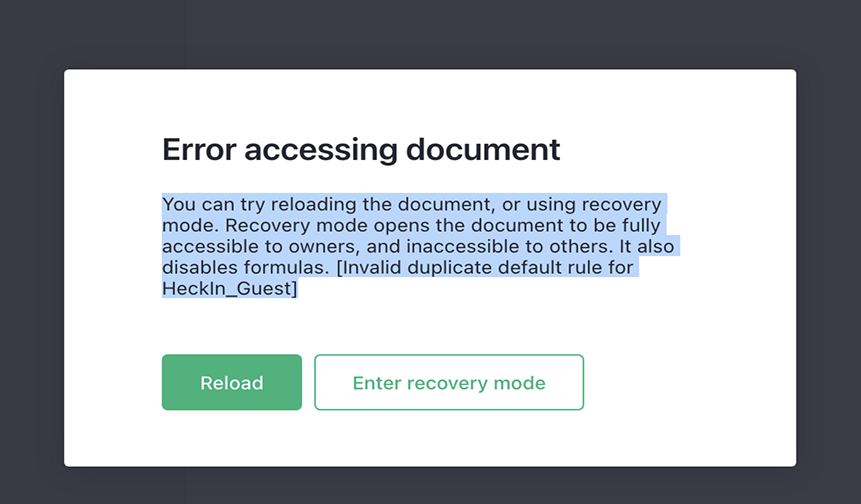
Users may see errors when trying to open or edit files. These problems can result from broken links, sync issues, or file corruption. In many cases, users assume the file is lost when it is still present but inaccessible.
Permission Conflicts

Access control in SharePoint can become complex. When permissions overlap or are inherited incorrectly, users may either lose access or gain access they should not have. This creates both operational and security concerns.
Workflow Failures

Automated workflows sometimes stop working without clear warnings. This may happen due to expired connections, changes in list structures, or integration failures with external services.
Integration Issues

SharePoint often connects with tools like Microsoft Teams, OneDrive, or third-party apps. When these integrations break, users may experience syncing delays or missing data.
Example Scenario

A very common example includes large document libraries causing performance delays. When a department stores years of files without archiving older content, the system takes longer to process queries and load views.
By identifying these patterns early, organizations can apply SharePoint error troubleshooting methods more effectively and avoid repeated disruptions.
SharePoint Troubleshooting Framework

A structured approach makes SharePoint troubleshooting faster and more accurate. Instead of guessing, teams can follow a clear process to find and fix issues.
Step 1: Identify the Issue

Start by gathering basic details. What exactly is not working? Is it a slow page, a missing document, or a failed workflow? Define the problem clearly and note when it started. This step reduces confusion and prevents wasted effort.
Step 2: Analyze System Logs

System logs provide valuable data for SharePoint system diagnostics. Review logs from SharePoint, server environments, and connected services. Look for error codes, warnings, or unusual activity patterns.
Step 3: Diagnose Infrastructure Components

Check servers, databases, and network connections. Many issues are not caused by SharePoint itself but by the underlying infrastructure. This step is essential in SharePoint operational troubleshooting.
Step 4: Test System Performance

Run controlled tests to measure load times, response rates, and system behavior. This helps confirm whether the issue is consistent or temporary. It also supports a proper SharePoint problem diagnosis framework.
Step 5: Apply Configuration Fixes

Once the root cause is clear, apply targeted fixes. This may include adjusting permissions, updating configurations, or repairing integrations. Always test changes in a safe environment before applying them fully.
Using this step-by-step method helps teams move from confusion to clear action. It also supports long-term stability and reduces repeated issues.
SharePoint Disaster Recovery Planning

Even with careful troubleshooting, system failures can still occur. A structured disaster recovery plan ensures that your SharePoint environment can recover quickly with minimal disruption. This section outlines practical strategies for enterprise collaboration platforms.
Backup Strategies
Regular backups are the foundation of the SharePoint platform recovery. Organizations should maintain multiple backup levels:
- Full farm backups – Capture the entire SharePoint environment, including content databases, configuration databases, and service applications.
- Site-level backups – Protect individual sites or document libraries for critical departments.
- Incremental backups – Save changes more frequently to minimize data loss.
Automating backup schedules reduces the risk of human error and ensures that recent data is always recoverable.
Failover Infrastructure
Failover systems allow SharePoint to continue operating if a primary server fails. Consider:
- Secondary web servers for load balancing
- Database mirroring or clustering for SQL Server backends
- Redundant storage systems for content databases
Failover infrastructure supports a SharePoint platform resilience strategy by keeping services available during unexpected downtime.
Document Recovery Procedures
Even with backups, restoring files quickly requires clear procedures:
- Identify the affected library or site
- Verify the most recent backup
- Restore files or databases in a controlled manner
- Test access and functionality before notifying users
Well-documented recovery procedures reduce downtime and prevent further errors during restoration.
Incident Response Protocols
An incident response framework ensures that technical teams respond quickly and consistently to SharePoint issues. Protocols may include:
- Predefined roles and responsibilities
- Standard escalation paths
- Communication plans for stakeholders
- Step-by-step restoration actions
By planning for incidents in advance, organizations reduce confusion and accelerate recovery.
Best Practices for Preventing SharePoint System Failures
Prevention is often easier than troubleshooting. The following SharePoint best practices help maintain system stability and minimize errors.
Proactive Monitoring
Regularly monitor SharePoint health, including server performance, storage capacity, and service uptime. Tools that track system metrics provide early warnings before minor issues escalate.
Performance Optimization
Maintain system performance by:
- Archiving old documents and sites
- Optimizing large lists and libraries
- Reviewing workflows and scheduled jobs
This reduces bottlenecks and supports SharePoint performance troubleshooting if problems arise.
Governance Policies
Clear policies guide how users interact with SharePoint. Governance ensures consistent permissions, document naming standards, and proper lifecycle management, which prevents many access and workflow issues.
Automated Alerts
Configure alerts for errors, failed jobs, or unusual system activity. Automated notifications allow teams to respond immediately rather than discovering issues after they have impacted users.
Infrastructure Redundancy
Redundant servers, databases, and storage reduce the risk of single points of failure. A resilient infrastructure supports both daily operations and disaster recovery efforts.
Implementing these practices creates a stronger foundation for reliable SharePoint systems and reduces the frequency and severity of issues.
Conclusion
Maintaining a stable and high-performing SharePoint environment requires planning, including performance troubleshooting guides, problem diagnosis frameworks, and enterprise SharePoint disaster recovery planning. Using SharePoint troubleshooting solutions, following a recovery strategy, and implementing infrastructure planning can reduce downtime, protect data, and facilitate easy teamwork.
Proactive monitoring, governance policies, automated alerts, and infrastructure redundancy are not just optional; they are essential pillars of a resilient SharePoint platform. When IT teams combine these strategies with clear incident response protocols, they can respond quickly to disruptions, prevent recurring failures, and maintain a reliable environment that supports enterprise productivity.
In short, a well-planned SharePoint troubleshooting and disaster recovery strategy empowers organizations to handle technical challenges with confidence, minimize business interruptions, and sustain long-term collaboration success.
Book a consultation with our SharePoint troubleshooting management experts to streamline your workflows and enhance internal process control today.
FAQs
Answering the most common SharePoint troubleshooting management questions ensures clarity for both beginners and advanced users alike.
-
What are common SharePoint issues?
Common problems include slow platform performance, document access errors, permission conflicts, workflow failures, and integration challenges. Using system diagnostics and error detection frameworks within a SharePoint incident response framework helps resolve these efficiently.
-
How can organizations troubleshoot SharePoint performance problems?
Start by identifying the exact issue, analyzing system logs, reviewing infrastructure, testing performance, and applying configuration fixes. Following a SharePoint problem diagnosis framework ensures systematic and repeatable troubleshooting.
-
What tools help diagnose SharePoint system errors?
Tools such as SharePoint Health Analyzer, ULS logs, SQL Server logs, and third-party monitoring software facilitate AI-based system diagnostics, automated incident monitoring, and SharePoint troubleshooting solutions.
-
How should organizations plan SharePoint disaster recovery?
Effective planning requires regular backups, failover infrastructure, documented recovery procedures, and enterprise SharePoint system recovery protocols. Integrating a collaboration platform resilience strategy and SharePoint system recovery planning ensures faster recovery with minimal disruption.
-
What steps help prevent SharePoint platform failures?
Preventive measures include proactive monitoring, performance reviews, governance policies, automated alerts, and infrastructure recovery planning. Incorporating predictive failure detection reduces both the frequency and impact of system failures.
-
Why is proactive monitoring important for SharePoint systems?
Proactive monitoring identifies potential issues before they affect users, supporting early interventions and improving collaboration platform resilience. This is critical for system failure prevention and maintaining uninterrupted enterprise operations.


