
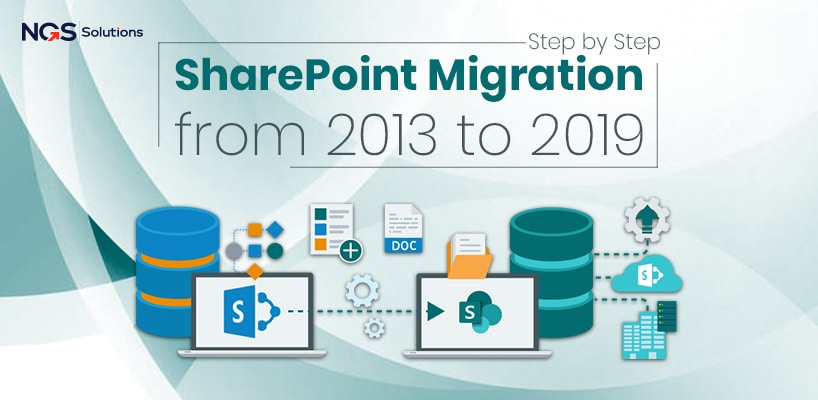
Migrating from SharePoint 2013 to SharePoint 2019 is a critical step for enterprises aiming to modernize their collaboration platform, improve security, and leverage the enhanced features offered by the latest SharePoint version. This migration is not just a software update, it’s an essential transformation to optimize document management, business workflows, and overall digital workplace efficiency.
This comprehensive guide will provide a step-by-step walkthrough of the SharePoint migration from 2013 to 2019. It will highlight best practices, common challenges, and solutions to ensure a smooth transition.
Why Migrate from SharePoint 2013 to 2019?
End of Support for SharePoint 2013
Microsoft ended mainstream support for SharePoint 2013, meaning there are no new feature updates, and extended support will also eventually end. Using an unsupported platform increases security risks, makes compliance difficult, and limits integration with modern tools.
Enhanced Security and Compliance
SharePoint 2019 provides modern authentication, improved permissions management, and advanced compliance features. Enterprises migrating to SharePoint 2019 can better secure sensitive data and align with regulatory standards.
Modern Collaboration Features
SharePoint 2019 integrates seamlessly with Microsoft 365, OneDrive, and Teams. It supports modern site templates, communication sites, and updated libraries, enabling faster collaboration and more user-friendly interfaces.
Improved Performance and Scalability
SharePoint 2019 offers better performance, including faster search, optimized storage, and scalability options that support growing enterprise data volumes. Migration ensures future-proof infrastructure.
Preparing for SharePoint Migration
Successful migration requires careful planning. Pre-migration preparation reduces downtime, prevents data loss, and ensures users have a seamless experience post-migration.
1. Conduct a Comprehensive Content Audit
Identify what data exists in SharePoint 2013, including:
- Document libraries
- Lists and workflows
- Custom site templates
- Permissions and user access levels
Categorize data as active, archived, or obsolete. This helps reduce unnecessary migration load and ensures only relevant content is transferred.
2. Evaluate Current Customizations
Check for:
- Custom workflows built in SharePoint Designer
- Third-party web parts or add-ons
- Legacy custom solutions using sandboxed code
Some customizations may not be compatible with SharePoint 2019 and will need to be rebuilt or replaced using modern frameworks like SharePoint Framework (SPFx).
3. Review Infrastructure Requirements
SharePoint 2019 has specific hardware and software prerequisites:
- Windows Server 2016 or 2019
- SQL Server 2016 or higher
- Appropriate RAM, CPU, and disk space
Ensure your servers meet these requirements to avoid performance issues post-migration.
4. Plan User Permissions and Governance
Document the current permissions and access structure. SharePoint 2019 allows role-based permissions and easier management. Planning governance ensures security and prevents accidental exposure of sensitive data.
5. Backup Everything
Before migration, create full backups of:
- SharePoint databases
- Customizations and solutions
- Content libraries
This ensures you can recover from any unexpected issues during migration.
Step-by-Step SharePoint Migration from 2013 to 2019
SharePoint 2013 to 2019 migration is a multi-stage process involving pre-migration planning, content preparation, the actual migration, and post-migration validation.
Step 1: Set Up a SharePoint 2019 Environment
Before moving content, set up the SharePoint 2019 environment:
- Install SharePoint 2019 on your servers
- Configure SQL Server instances
- Set up web applications, service applications, and site collections
- Implement security settings and SSL certificates
This environment should mirror your SharePoint 2013 structure as closely as possible for a smoother migration.
Step 2: Upgrade Databases
SharePoint 2013 content databases need to be attached to SharePoint 2019. This is often done in a two-step database attach method:
- Test Migration in a Development Environment
- Restore your SharePoint 2013 databases to a test SQL Server
- Attach these databases to SharePoint 2019
- Identify any compatibility issues
- Resolve Compatibility Issues
- Update or remove unsupported features
- Adjust workflows and site templates that may fail in 2019
- Ensure all lists, libraries, and permissions are intact
- Perform Final Database Attach in Production
- Move the validated databases to the production SharePoint 2019 environment
- Attach content databases to the corresponding web applications
Step 3: Migrate Sites and Content
Once databases are attached, migrate individual site collections, libraries, and lists:
- Use SharePoint Migration Tool (SPMT) or third-party tools like Metalogix or AvePoint
- Ensure metadata, version history, and permissions are preserved
- Validate the integrity of documents after migration
Step 4: Migrate Workflows and Custom Solutions
SharePoint 2013 workflows built with SharePoint Designer may need to be:
- Recreated in SharePoint 2019 using Power Automate
- Adjusted for modern document libraries and lists
- Tested thoroughly to ensure they function correctly
Custom code or solutions must be checked for compatibility with SharePoint 2019.
Step 5: Implement User Permissions
Once content and workflows are migrated, configure permissions:
- Map old user groups to the new environment
- Apply role-based access controls
- Test access levels for each team or department
- Audit permissions to ensure compliance
Step 6: Test Functionality and Performance
Before going live, perform extensive testing:
- Check site navigation and structure
- Validate document access and version history
- Test search functionality and indexing
- Run load testing to ensure system performance under typical enterprise usage
Step 7: Conduct User Training
Migrating to SharePoint 2019 introduces modern interfaces:
- Train users on new site templates, document libraries, and navigation
- Provide quick reference guides or FAQs
- Offer workshops for teams that use SharePoint heavily
Step 8: Go Live and Monitor
After testing and training:
- Switch production traffic to the new SharePoint 2019 environment
- Monitor performance, access, and errors for the first 2-4 weeks
- Maintain a support team to quickly resolve post-migration issues
Common Challenges During SharePoint Migration and Solutions
Large Data Volumes
Problem: Migrating terabytes of data can slow down the process or cause failures.
Solution: Use phased migration, compress data during transfer, and schedule migrations during off-peak hours.
Custom Workflows Break
Problem: Old workflows may not be supported in SharePoint 2019.
Solution: Recreate workflows in Power Automate or update them to modern workflow standards.
Permission Conflicts
Problem: Misconfigured permissions may lock users out or expose sensitive data.
Solution: Map old permissions to SharePoint 2019 roles and conduct thorough access testing.
Downtime Risk
Problem: Migrating without planning can halt daily business operations.
Solution: Use phased migration and pre-tested scripts to minimize downtime.
Metadata Loss
Problem: Some migration methods may strip metadata.
Solution: Validate metadata during migration and use tools that preserve document properties.
Post-Migration Best Practices
-
Run Full Validation
- Ensure all content, metadata, and permissions are intact
- Validate workflows and custom solutions
-
Implement Governance Policies
- Define rules for document storage, sharing, and lifecycle management
- Set up retention policies and access controls
-
Monitor Performance
- Use monitoring tools to track search performance, load times, and user activity
- Optimize indexing and database performance as needed
-
User Feedback
- Collect feedback to identify any issues with accessibility, navigation, or performance
- Adjust sites or training based on feedback
-
Continuous Improvement
- Plan for incremental updates
- Take advantage of SharePoint 2019 new features like communication sites, modern lists, and integration with Microsoft Teams
Business Benefits of Migrating from SharePoint 2013 to 2019
- Enhanced Security: Protect sensitive enterprise data with modern authentication and compliance tools.
- Improved Collaboration: Enable teams to work together in real time using modern libraries and Teams integration.
- Reduced IT Overhead: Minimize maintenance for legacy systems while gaining more scalable infrastructure.
- Faster Search and Access: Modern indexing and metadata improve findability of documents and data.
- Future-Proof Platform: Prepare your enterprise for cloud integration and digital transformation initiatives.
Conclusion
Migrating from SharePoint 2013 to SharePoint 2019 is a strategic move for enterprises looking to modernize collaboration, improve security, and ensure long-term platform support. By following a step-by-step migration process, starting from pre-migration assessment, database upgrade, site and workflow migration, permissions setup, testing, and user training, organizations can ensure a smooth, efficient, and minimally disruptive transition.
A successful migration not only preserves existing content and business processes but also sets the foundation for a modern digital workplace capable of supporting growth, compliance, and advanced collaboration needs.
Investing time and effort in a well-planned SharePoint migration ensures business continuity, enhances operational efficiency, and unlocks the full potential of SharePoint 2019 for enterprise-scale collaboration.
FAQs
- Can all SharePoint 2013 customizations be migrated?
Not all custom solutions are compatible. Some workflows or web parts may need to be rebuilt using modern frameworks.
- How long does migration take?
Timeline depends on data volume, complexity of customizations, and infrastructure readiness. Small systems may take days, while large enterprise migrations can take weeks.
- Can migration be done without downtime?
Yes, with careful planning, phased migration, and parallel testing, zero-downtime migration is achievable for business-critical systems.
- Do migrated documents retain version history?
With proper tools and database attach methods, full version history can be preserved.
- Is user training necessary after migration?
Absolutely. SharePoint 2019 introduces new interfaces and features that require user awareness to maintain productivity.


