
Salesforce holds your company’s most sensitive customer data. It stores names, credit card details, contract documents, and sales leads. Because this data is valuable, it becomes a target for cyber threats. At the same time, employee mistakes or incorrect access settings can expose information just as easily as an outside attacker.
As a Salesforce administrator, you play a key role in protecting this system. You decide who can log in, what records users can access, and which actions they are allowed to perform. Following Salesforce security best practices helps keep your business secure while reducing the risk of costly data leaks.
Regular Salesforce monitoring and support services can also help organizations identify security issues early, maintain system performance, and ensure that access controls remain aligned with business needs.
This practical reference covers the steps Salesforce admins can take to strengthen CRM security. You will learn how to manage permissions, configure login rules, monitor user activity, and protect critical business data.
Understanding the Salesforce Security Model
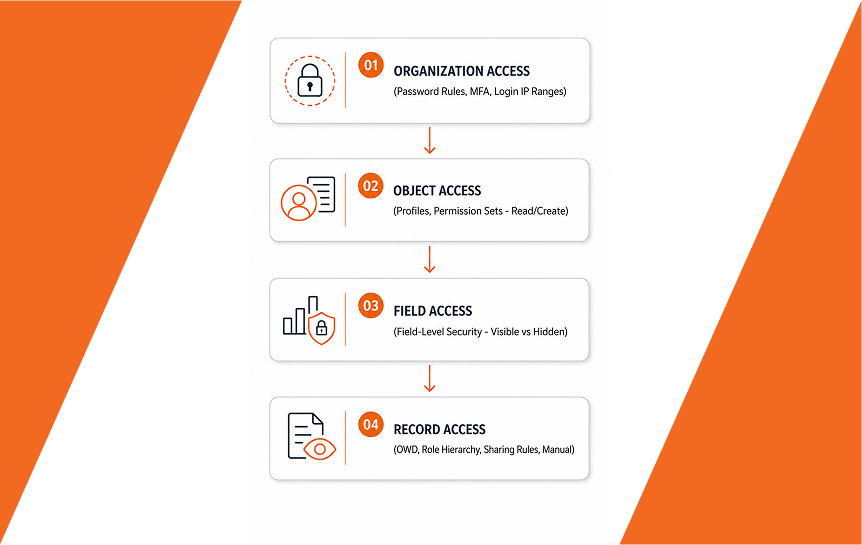
Before changing any settings, you must understand how Salesforce security works. Salesforce uses a multi-layer defense strategy. This means if an attacker passes one security layer, other layers still block them.
Authentication vs Authorization
Authentication checks who you are. Authorization checks what you can do.
- Authentication: The system asks for a username, password, and security code. It confirms your identity.
- Authorization: The system checks your profile and permission sets. It decides if you can view a record or click a button.
Both steps are key for Salesforce access control. A user must prove who they are before receiving permission to access data.
Layers of Salesforce Security
Salesforce controls access at four distinct levels:
- Organization Level: Controls when, where, and how users log in.
- Object Level: Controls which tabs and data tables users can see (like Accounts or Leads).
- Field Level: Controls whether a user can see a specific field on a record (like Social Security Numbers or Deal Value).
- Record Level: Controls which specific records a user can view or edit (like “My Accounts” versus “All Accounts”).
Key Rule: Access moves from restrictive to open. You start by locking down the entire system. Then, you open access only to users who need it for their jobs.
Why Security Matters for Every Organization
A single data leak can ruin customer trust. It can also cause heavy fines from regulatory agencies like HIPAA or GDPR.
Proper Salesforce data security ensures:
- Unsafe users cannot steal customer lists.
- Employees only view data needed for their daily tasks.
- Your organization passes safety audits with ease.
- Your team protects company revenue and brand reputation.
User Access Management Best Practices
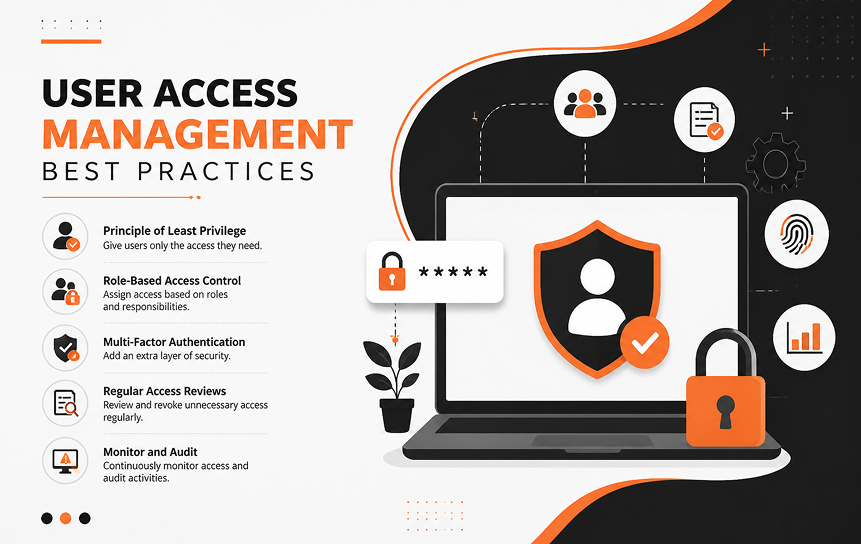
Managing access is your top job as an admin. Bad access control is the leading cause of internal data leaks. Follow these core rules to protect your environment.
Apply the Principle of Least Privilege
The principle of least privilege means giving users only the minimum access they need to complete their work.
Do not grant full admin rights just to solve a quick access issue. If a sales rep only needs to read contacts, do not give them edit or delete access. Limiting access stops accidental changes and blocks malicious activity.
Use Permission Sets Instead of Multiple Profiles
Salesforce now recommends keeping user profiles lean. In fact, best practices favor using minimum-access profiles and assigning extra permissions through Salesforce permission sets.
| Feature | Custom Profiles | Permission Sets & Groups |
| Best For | Baseline access (one profile per user) | Flexible, job-specific privileges |
| Maintenance | Hard to scale; leads to “profile sprawl” | Easy to reuse across different departments |
| Salesforce Recommendation | Keep as minimal as possible | Primary tool for granting permissions |
| Flexibility | Rigid | High (assign and remove easily) |
Use permission set groups to bundle permissions by job role. For example, create a “Tier 1 Support” group that combines read access to Cases, Accounts, and Assets.
Review User Access Regularly
Set up a recurring Salesforce security checklist to review user rights. Users change roles, get promotions, or move to new departments over time.
If you do not review permissions, users collect excess rights they no longer need. Schedule a permission review every three months to remove unneeded access.
Remove Inactive Users Promptly
When an employee leaves the company, disable their Salesforce account right away. Never leave open accounts sitting idle.
Important Admin Tip: Do not delete user records. Instead, deactivate them. Deactivating a user stops them from logging in, but preserves historical records and team audit trails.
When deactivating users:
- Unfreeze the account if locked, then click Deactivate.
- Reassign their open tasks and active leads to active team members.
- Remove them from active automated workflows or approval processes.
Control API Access
API access lets external software read and write Salesforce data. While useful, open API access creates real risks.
Restrict API access to verified service accounts and trusted integration tools. Use permission sets to turn off “API Enabled” rights for regular business users who only log in through web browsers.
Configure Data Access Correctly
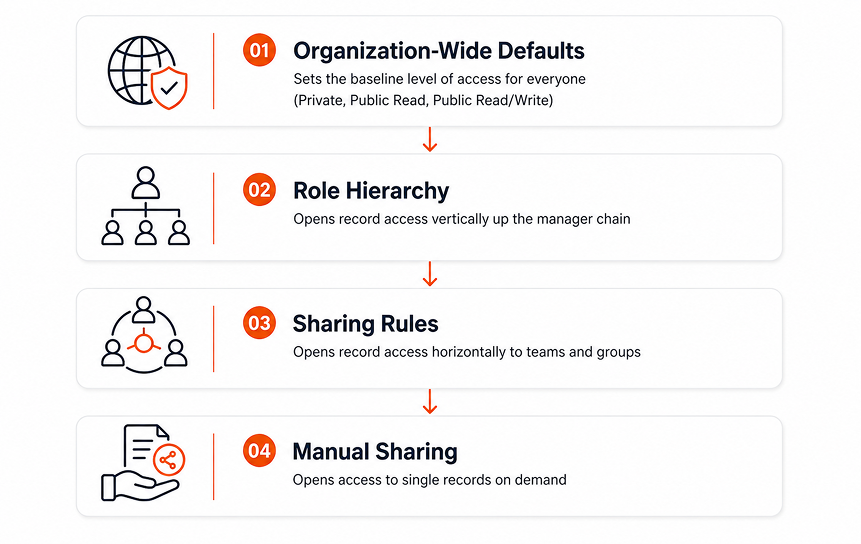
Controlling access to objects, fields, and records keeps your customer data safe. Salesforce gives you multiple tools to manage data visibility safely.
Organization-Wide Defaults (OWD)
Organization-Wide Defaults (OWD) set the baseline level of record access for your whole company.
Always set your OWD to Private or Public Read-Only for sensitive objects like Accounts, Opportunities, and Contacts. It is much easier to open access later using sharing rules than to lock down data that is already open to everyone.
Role Hierarchy
The role hierarchy opens record access up management chains. Users higher in the hierarchy automatically inherit access to records owned by employees below them.
- A Sales Manager automatically sees records owned by their Sales Reps.
- A Support Lead sees cases owned by their Support Agents.
Keep your role hierarchy clean and simple. Match it to data access needs rather than your formal HR organizational chart.
Sharing Rules
Use sharing rules to grant lateral record access across departments. Sharing rules make automatic exceptions to your OWD settings.
You can share records based on:
- Record Owner: Share records owned by the Marketing Team with the Sales Team.
- Criteria: Share all Accounts where State = California with the West Coast Sales Group.
Manual Sharing
Manual sharing lets individual record owners share single records with specific colleagues. This works well for one-off projects.
However, admins should not rely on manual sharing for standard business processes. Manual access disappears when record ownership changes, which can disrupt business workflows.
Field-Level Security
Field-Level Security (FLS) controls whether a user can view or edit specific fields on an object. FLS overrides page layouts. If a field is hidden via FLS, the user cannot see it in reports, list views, or searches either.
Use FLS to lock down sensitive fields like:
- Social Security Numbers
- Credit Card details
- Internal margin percentages
- Personal phone numbers
Object-Level Permissions
Object-level permissions define whether users can perform Create, Read, Edit, or Delete (CRED) actions on an object.
Never give standard users “Delete” access on core objects like Accounts or Contacts unless strictly necessary. Accidental deletion is a frequent cause of CRM data loss.
Strengthen Authentication and Login Security
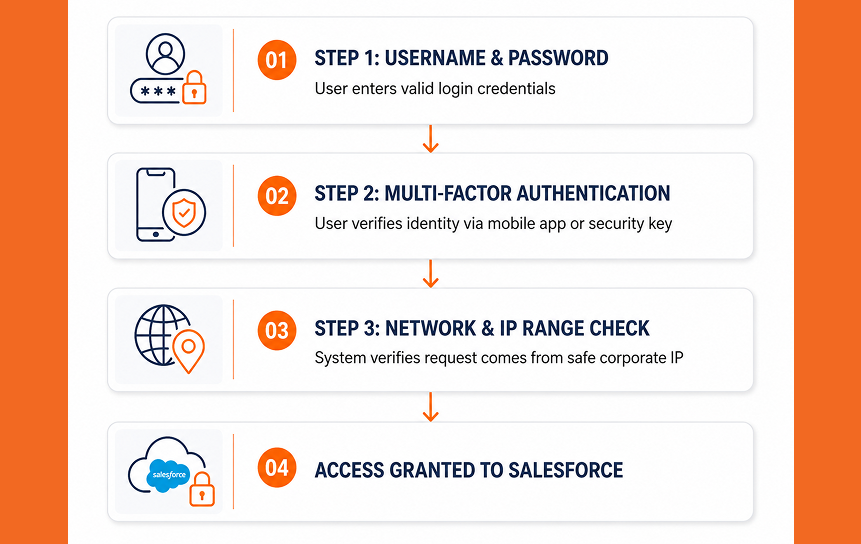
Protecting the front door is critical. If an attacker guesses or steals a user’s password, strong identity management tools keep them from entering your system.
Enable Multi-Factor Authentication
Multi-Factor Authentication (MFA) requires users to provide two or more identity proofs before logging in:
- Something you know: Username and password.
- Something you have: Salesforce Authenticator app, security key, or code generator.
Salesforce requires MFA for all user logins. Verify that MFA is enforced across your entire organization without exceptions.
Configure Password Policies
Set strict password policies in the Setup menu:
- Expiration: Set passwords to expire every 90 days.
- Minimum Length: Require at least 12 to 16 characters.
- Complexity: Require letters, numbers, and special characters.
- History: Prevent users from reusing their last 5 to 10 passwords.
- Lockout Threshold: Lock accounts after 3 or 5 failed login attempts.
Restrict Login IP Ranges
Restrict login IP ranges to prevent users from logging in outside your safe office network or corporate VPN.
You can set IP ranges at the Profile level. If a user tries to log in from an unknown IP address outside these ranges, the system rejects their login attempt immediately.
Set Trusted Network Access
Trusted IP ranges work at the organization level. When users log in from a trusted network IP, they do not need to answer identity verification challenges as often.
Keep your trusted IP list updated. Remove old office IP addresses and temporary networks promptly.
Configure Session Timeout Settings
Session timeouts log users out automatically after a period of inactivity. This protects your data if an employee leaves their computer unattended in a public area.
Set session timeouts to 15 to 30 minutes for high-security environments, or 2 hours for standard business environments. Enable the setting that forces logout when a session times out.
Monitor Salesforce for Security Risks
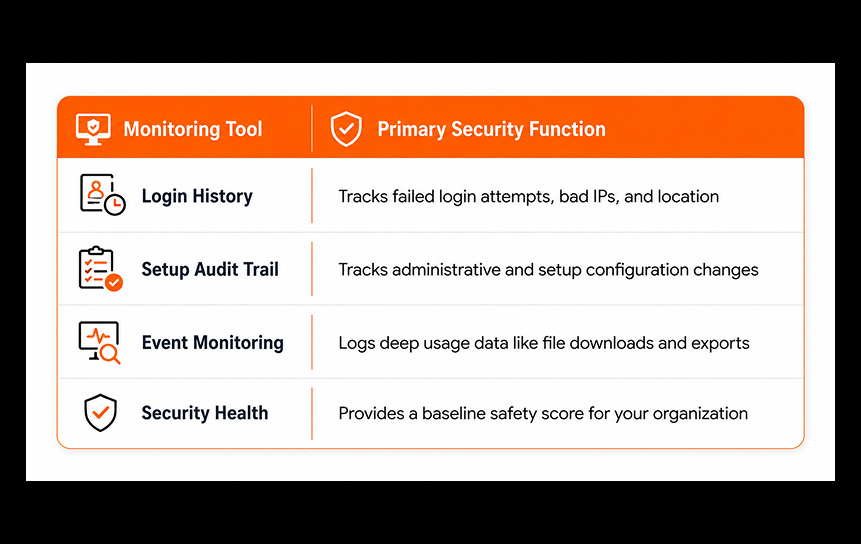
To maintain effective Salesforce CRM security, you must actively monitor activity inside your environment. Regular monitoring helps you discover suspicious actions before they lead to serious incidents.
Review Login History
Check the Login History page regularly to spot unauthorized access attempts.
Look out for:
- Multiple failed login attempts in a short timeframe.
- Logins from unknown countries or unapproved browser types.
- Logins occurring at unusual times (such as 3:00 AM local time).
Use Setup Audit Trail
The Setup Audit Trail logs administrative changes made to your organization. It tracks who made the change, what was changed, and when it happened.
Review this trail to monitor:
- Changes to user profiles and permission sets.
- Modifications to password policies and IP restrictions.
- New app installations from the Salesforce AppExchange.
Monitor Event Logs
Event Monitoring gives you deep insights into user behavior. It tracks over 50 event types, including report runs, file downloads, dashboard views, and REST API calls.
If a sales rep suddenly downloads a report with 50,000 lead records right before resigning, Event Monitoring alerts you to the risk immediately.
Detect Unusual User Activity
Set up real-time transaction security policies to block or flag unusual behavior automatically.
For example, build a policy that blocks any user from exporting a lead report if it contains more than 5,000 records. This keeps high-value customer data safely inside your organization.
Track Configuration Changes
Use automated tracking tools to monitor metadata changes. Keep track of updates to custom objects, automated flow routines, and Apex code classes.
Documenting changes ensures your team maintains clear access governance across sandbox and production environments.
Protect Sensitive Customer Data
Protecting stored data is essential for maintaining trust and regulatory compliance. Use these Salesforce data protection strategies to keep customer records safe.
Encrypt Sensitive Information
Salesforce provides built-in encryption features to keep sensitive data unreadable if intercept attempts occur.
- Classic Encryption: Encrypts custom text fields at rest.
- Shield Platform Encryption: Encrypts core standard fields, custom fields, files, and attachments without breaking business logic.
Encrypt sensitive personal information such as driver’s license details, financial account numbers, and healthcare entries.
Limit Data Export Permissions
The ability to export data is a significant data loss risk. Limit export permissions strictly to trusted system admins.
Remove these rights from general user permissions:
- “Export Reports”
- “Weekly Data Export”
- “API Enabled” (for non-technical business staff)
Secure File Sharing
Files uploaded to Salesforce can contain confidential customer contracts, financial estimates, and personal records.
Set default file sharing permissions to Private or Internal Users Only. Prevent users from creating public web links for internal files unless approved by your security team.
Apply Data Retention Policies
Do not store old customer data indefinitely. Storing unnecessary legacy data increases your legal risk and drives up storage costs.
Define clear data retention schedules:
- Identify legal requirements for data storage times (for example, 7 years for billing records).
- Use automated batch flows or data management tools to archive or delete outdated records safely.
Backup Critical CRM Data
Salesforce secures the cloud infrastructure, but you remain responsible for your own record data. Accidental user deletions, bad data imports, or broken flow scripts can corrupt records instantly.
Run regular data backups using:
- Salesforce Weekly Export Service.
- Data Loader exports for smaller objects.
- Third-party backup tools from the AppExchange for automated, daily point-in-time backups.
Common Salesforce Security Mistakes
Even skilled admins can make simple setup errors. Avoid these common mistakes when securing your CRM.
Excessive User Permissions
Granting System Administrator privileges or Modify All Data rights to solve simple operational roadblocks is a major risk.
Example Scenario: A sales coordinator cannot edit closed deals. Instead of creating a simple permission set to allow closed deal edits, the admin grants them System Administrator rights. The coordinator later deletes an entire campaign list by mistake.
Always grant targeted permissions using custom permission sets instead of elevating user profiles.
Shared User Accounts
Never allow multiple employees to share a single user account. Shared accounts destroy accountability because you cannot track who created, changed, or deleted a record.
Every user needs their own unique license. Shared accounts also violate Salesforce licensing agreements.
Weak Password Policies
Using standard default password rules leaves your system vulnerable to simple brute-force attacks.
Ensure your organization enforces minimum password length requirements, multi-factor authentication, and frequent password updates.
Ignoring Security Audits
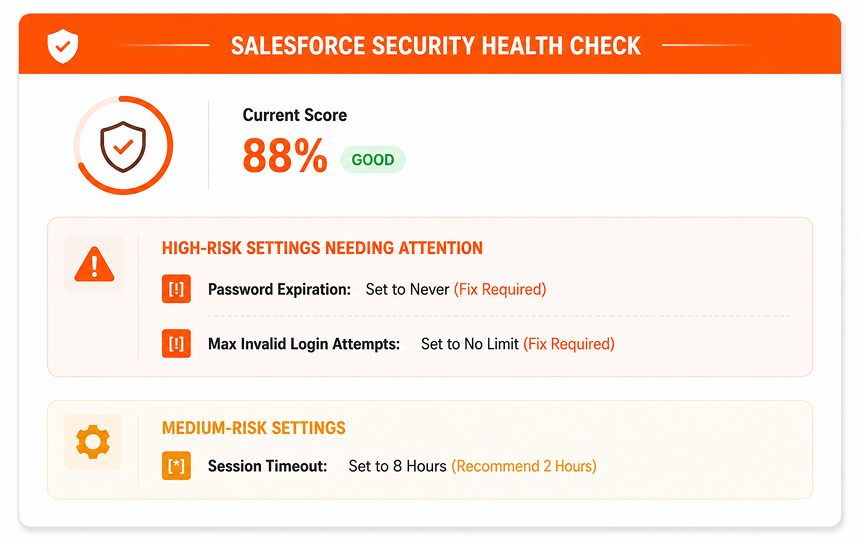
Ignoring built-in tools like Salesforce Security Health Check puts your system at risk.
Run the Health Check monthly. It analyzes your setup against standard Salesforce security benchmarks and gives you an overall security score. Fix high-risk vulnerabilities immediately.
Poor Access Documentation
If you do not document custom sharing rules, profile changes, and permission assignments, managing your system becomes difficult over time.
Maintain a clear, updated document listing:
- Who holds administrative access and why.
- The purpose of each custom permission set.
- Approved third-party API integrations and their technical owners.
Unsecured Third-Party Integrations
AppExchange tools and external APIs help extend Salesforce capabilities, but poorly built connected apps can introduce vulnerabilities.
Before installing third-party tools:
- Verify app security credentials on the AppExchange.
- Review requested OAuth scopes carefully.
- Restrict connected app access to pre-approved user profiles.
Salesforce Security Checklist
Use this practical Salesforce security audit checklist to keep your CRM safe throughout the year.
Weekly Security Tasks
- Review Login History for repeated failed access attempts.
- Deactivate accounts for former employees who left during the week.
- Review the Setup Audit Trail for unexpected administrative updates.
Monthly Security Reviews
- Run the built-in Salesforce Security Health Check tool.
- Address all high-risk items identified in the Health Check report.
- Verify that new employees hold appropriate permission sets.
- Test system backups to confirm data can be restored safely.
Quarterly Permission Audits
- Audit profiles and permission sets to remove unneeded access.
- Review users holding “Modify All Data” or “System Administrator” privileges.
- Review active connected apps and revoke unneeded API tokens.
- Verify corporate IP range restrictions match current office and VPN networks.
Annual Security Assessment
- Conduct a full data security review across all custom objects and fields.
- Test your disaster recovery plan and system restore procedures.
- Review and update company data retention policies.
- Provide refreshed cybersecurity awareness training for all Salesforce users.
Compliance Documentation
Keep all audit logs, access review notes, and policy updates stored safely. Detailed documentation helps prove regulatory compliance during formal security reviews.
Future Trends in Salesforce Security
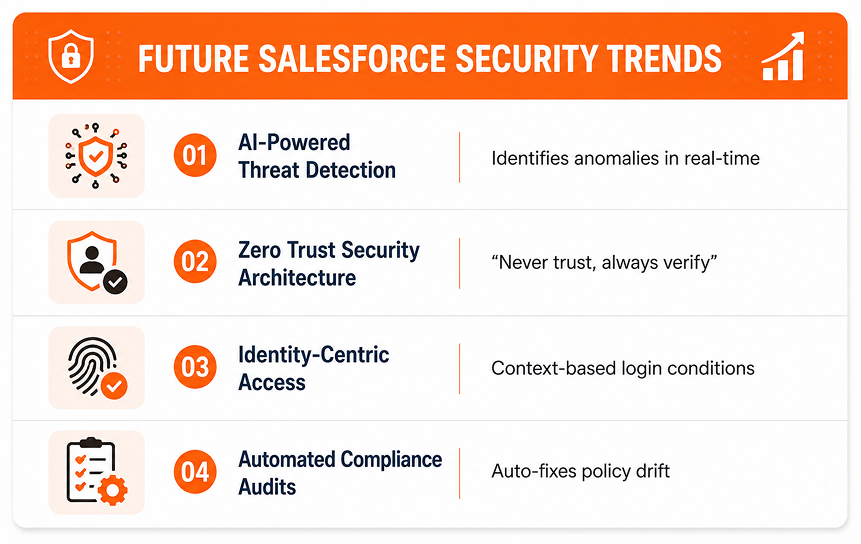
As enterprise technology evolves, Salesforce security tools continue to advance. Understanding emerging trends helps you protect your CRM environment effectively over the long term.
AI-Powered Threat Detection
Artificial intelligence tools now monitor user habits in real time. AI threat tools detect when a user views an unusual number of records or logs in from an unexpected location, flagging or blocking risk automatically.
Zero Trust Security
Modern enterprises adopt a Zero Trust framework: Never trust, always verify.
Even if a user logs in from an internal office network, Zero Trust models evaluate device safety, context, and permissions continuously before granting access to sensitive records.
Identity-Centric Access Control
Traditional security focused mainly on network boundaries. Today, identity serves as the core security perimeter.
Future access control relies on conditional factors, including device compliance, user behavior, and contextual risk profiles.
Automated Compliance Monitoring
Automated compliance monitoring tools help prevent configuration drift. When an admin accidentally changes a critical security setting, automated tools detect the error and restore safe defaults automatically.
Final Thoughts
Securing your Salesforce instance is an ongoing process, not a one-time project. As business operations grow and security risks evolve, your security setup must adapt accordingly.
By following these core Salesforce security best practices, you protect customer data, lower risk, and maintain a high-performing CRM environment:
- Apply the principle of least privilege across all profiles and permission sets.
- Enforce strong multi-factor authentication and strict login rules.
- Keep default data access restrictive using Organization-Wide Defaults.
- Monitor system activity regularly using built-in audit tools.
- Perform recurring safety reviews using a standard checklist.
Organizations planning a new deployment or enhancing an existing CRM can also benefit from professional Salesforce implementation services to build security, governance, and scalability into their Salesforce environment from the outset.
FAQs
1. What are the most important Salesforce security best practices?
The most important Salesforce security best practices for admins include enabling Multi-Factor Authentication (MFA), following the principle of least privilege, using Permission Sets effectively, and regularly reviewing Salesforce security settings. Admins should also configure Organization-Wide Defaults (OWD) carefully, monitor Setup Audit Trails, and run regular Security Health Checks to identify potential risks.
2. How often should Salesforce user permissions be reviewed?
Organizations should review Salesforce user permissions regularly to maintain a secure environment. A monthly review helps identify inactive users, former employees, and unnecessary access, while a quarterly audit provides a deeper analysis of roles, profiles, and permission sets. Following Salesforce user permission best practices ensures that users only have access to the data and features they need.
3. What is the difference between Profiles and Permission Sets in Salesforce?
Profiles provide a user’s baseline access, including default settings, object permissions, and system privileges. Every Salesforce user must have one profile. Permission Sets provide additional access without changing the user’s existing profile. Modern Salesforce access management practices recommend using minimal profiles combined with flexible Permission Sets to improve security and simplify administration.
4. Why is Multi-Factor Authentication important for Salesforce security?
Multi-Factor Authentication (MFA) is one of the most effective ways to protect Salesforce environments from compromised credentials. It requires users to verify their identity through an additional method, such as an authenticator app code, making it significantly harder for attackers to gain access even if passwords are exposed.
5. How can organizations prevent unauthorized access in Salesforce?
To prevent unauthorized access in Salesforce, businesses should enforce MFA, limit login access to trusted IP ranges, apply strong password policies, configure appropriate session timeout settings, and immediately deactivate inactive user accounts. A well-planned Salesforce access management guide helps organizations control permissions, reduce security risks, and protect sensitive business data.
6. What should be included in a Salesforce security checklist for businesses?
A Salesforce security checklist for businesses should include reviewing user permissions, enabling MFA, monitoring login activity, configuring sharing settings, auditing profiles and Permission Sets, and regularly checking security configurations. Businesses should also verify that their Salesforce security settings align with internal policies and compliance requirements.
7. What tools are available to monitor Salesforce security?
Salesforce provides several built-in security tools, including Security Health Check, Login History, Setup Audit Trail, Event Monitoring, and Real-Time Transaction Security policies. These tools help administrators track user activity, identify suspicious behavior, and maintain a secure Salesforce environment.
8. How can Salesforce admins improve overall security management?
Salesforce admins can improve security by regularly auditing access controls, removing unnecessary permissions, keeping security settings updated, and educating users about safe login practices. Combining proactive monitoring with Salesforce security best practices helps organizations maintain better control over their data and reduce the risk of unauthorized access.


